


HubSpot Slack integration has become essential for the 238,000 companies on HubSpot and the 42 million users active on Slack each day. However, the native connector offers only limited functionality. Notifications often get buried, CRM updates remain locked inside HubSpot, and reporting still relies on manual exports. Worse, it lacks workflow customization and bidirectional updates leaving teams without the visibility and flexibility they need.
This guide shows how to move past those limits. We’ll walk you through Slack and HubSpot integration via Devart ODBC Drivers, compare ODBC with the native app, and highlight best practices to keep workflows directly connected to team conversations.
Table of contents- Why HubSpot-Slack integration matters
- What is the Devart ODBC Driver for HubSpot and Slack?
- How to integrate HubSpot with Slack via Devart ODBC: Step by Step
- Benefits of using Devart ODBC for HubSpot–Slack integration
- HubSpot + Devart ODBC + Slack vs native integration
- Conclusion
- FAQ
- How do I set up a secure HubSpot–Slack integration in 2026?
- What are the key benefits of connecting HubSpot CRM to Slack?
- Can I receive real-time deal and ticket updates from HubSpot in Slack?
- Is it possible to update HubSpot records directly from Slack?
- What are the limitations of HubSpot’s native Slack integration?
- How does Devart ODBC enhance HubSpot and Slack connectivity?
- Can I automate reporting from HubSpot to Slack using BI tools?
- Where can I find support for advanced HubSpot–Slack integrations?

Why HubSpot-Slack integration matters
For most teams, HubSpot is the system of record while Slack is the system of action. Integrating the two ensures that customer data, deal activity, and service updates flow directly into the conversations where decisions happen. This turns Slack from a simple messaging app into a real-time command center for sales, marketing, and support.
When HubSpot and Slack remain disconnected, teams run into predictable problems:
- Notifications get lost across email and multiple dashboards.
- CRM data can’t be updated from Slack, forcing context-switches that slow productivity.
- Leads and tickets lack real-time visibility, leaving sales and support reactive.
- Reporting remains manual, resulting in delays and a higher risk of missed SLAs.
By unifying HubSpot’s structured CRM data with Slack’s instant communication, organizations reduce friction, improve responsiveness, and keep revenue-generating activities visible to everyone who needs them.
However, closing these gaps takes more than the native connector. It takes the best HubSpot ODBC connector and a proven Slack ODBC driver, which is exactly what Devart provides.
What is the Devart ODBC Driver for HubSpot and Slack?
The Devart ODBC Driver is a universal connector that gives SQL-based access to HubSpot and Slack data. Instead of writing custom API scripts or relying on limited native connectors, it lets teams query contacts, deals, tickets, conversations, and channels as if they were tables in a relational database.
For example, sales teams can join HubSpot deal stages with Slack conversation history to measure response times. At the same time, support managers can track SLA breaches by combining ticket updates with escalation channel activity in real time.
Key features include:
- Real-time access to HubSpot data, including Contacts, Deals, Tickets, and Companies.
- Full SQL-92 compatibility with support for REST API endpoints.
- Secure authentication via OAuth 2.0 and API Keys.
- Support for 32- and 64-bit systems across environments.
- Broad compatibility with 200+ BI, analytics, and integration tools.
- Cross-platform availability for Windows, macOS, and Linux.
By introducing a standardized, SQL-based layer between HubSpot, Slack, and your analytics stack, Devart ODBC Drivers simplify Slack HubSpot integration, and unlock real-time reporting across teams.
Now that you know what the driver offers, the section below show how to configure it in practice.
How to integrate HubSpot with Slack via Devart ODBC: Step by Step
The Devart ODBC Drivers let you bring HubSpot CRM and Slack data into the same SQL environment. Once configured, you can query both platforms in SQL Server, join them in reports, and push insights into BI or ETL tools. Here’s how to set it up.
Step 1: Install the Devart ODBC Drivers for HubSpot and Slack
Devart ODBC Drivers run on Windows, macOS, and Linux, making them suitable for mixed environments. The process below outlines installation on Windows. Here’s what to do:
- Download and run the installer: Get the HubSpot and Slack driver executables and launch them.
- Follow the installation wizard: Proceed through the on-screen prompts to start setup.
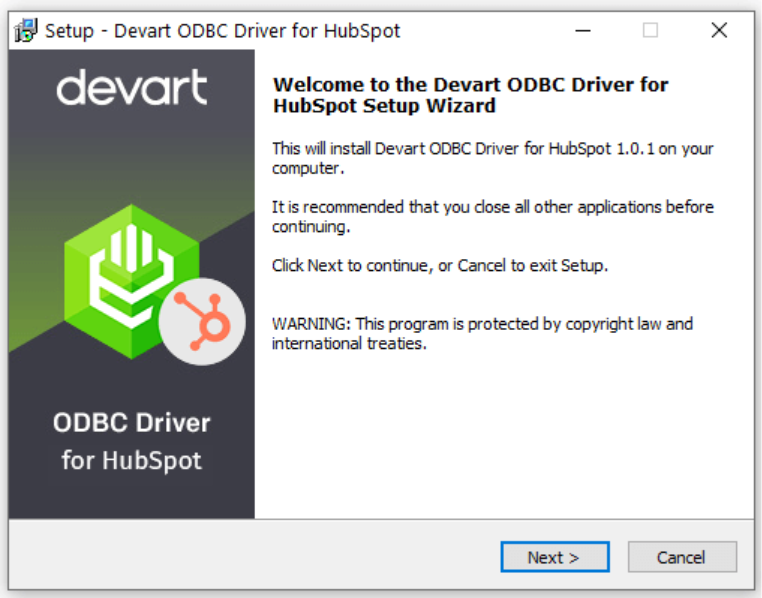
- Remove previous versions: Uninstall any earlier drivers to prevent conflicts. If skipped, the wizard will warn you and allow overwriting.
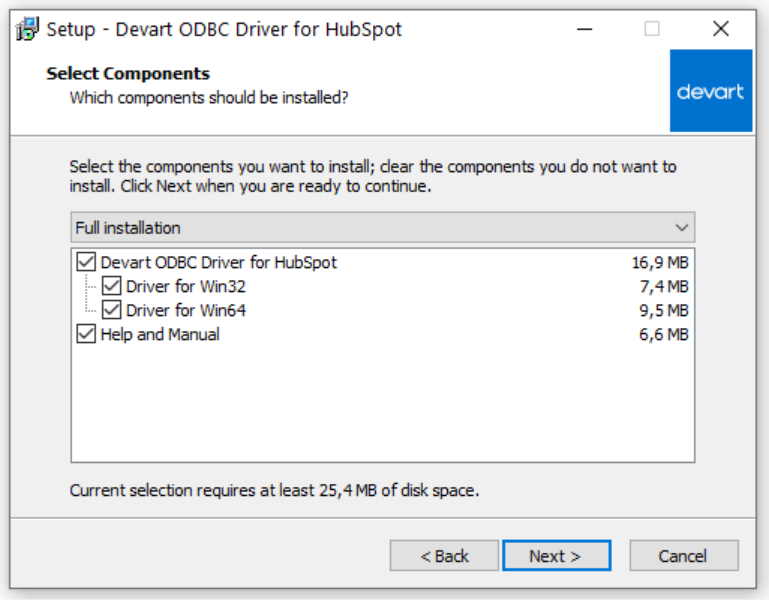
- Select components: Choose whether to install the 64-bit driver (recommended for modern BI tools) and optionally include Help files.
- Activate the driver: Select Trial for 30-day evaluation, or select Activation Key to enter the code from your registration email or Customer Portal.
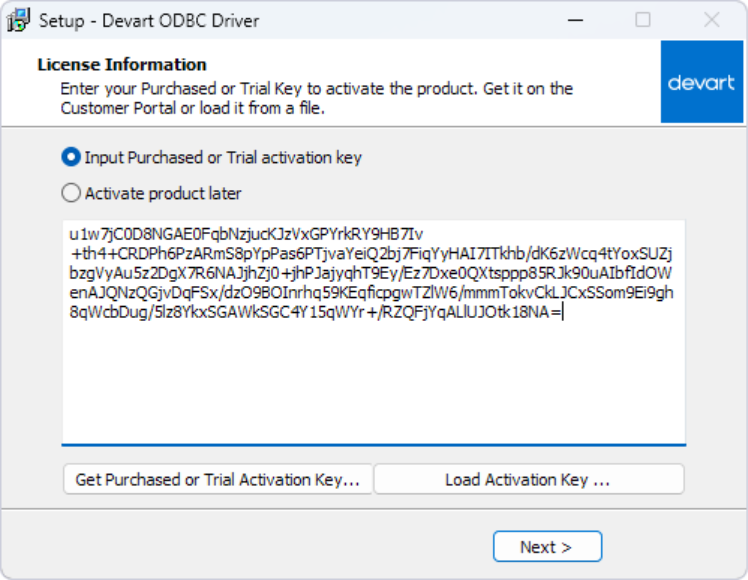
Alternatively, you can load a saved activation file.
- Click Next, then Install, and finally Finish to complete the process.
After installation, proceed to configure the drivers to connect HubSpot and Slack.
Step 2: Configure DSNs, authenticate, and test connections
After installation, create DSNs (Data Source Names) for HubSpot and Slack. DSNs store connection details and make access consistent and secure across ODBC-enabled applications. Here’s what to do:
- Open the ODBC Data Source Administrator: Search for ODBC Data Sources in Windows and select the version that matches your application’s bitness (32-bit or 64-bit). You can also launch it directly with
C:\Windows\SysWOW64\odbcad32.exe(32-bit) orC:\Windows\System32\odbcad32.exe(64-bit).
In macOS/Linux, use odbc.ini or the iODBC Administrator to create and manage DSNs.
- Select DSN type: Choose either User DSN or System DSN. Both work for most BI and ETL tools, but some applications may require a specific type.
- Create a new DSN: Click Add to open the Create New Data Source dialog.
- Choose the driver: Select Devart ODBC Driver for HubSpot when configuring HubSpot. or Devart ODBC Driver for Slack when setting up Slack.
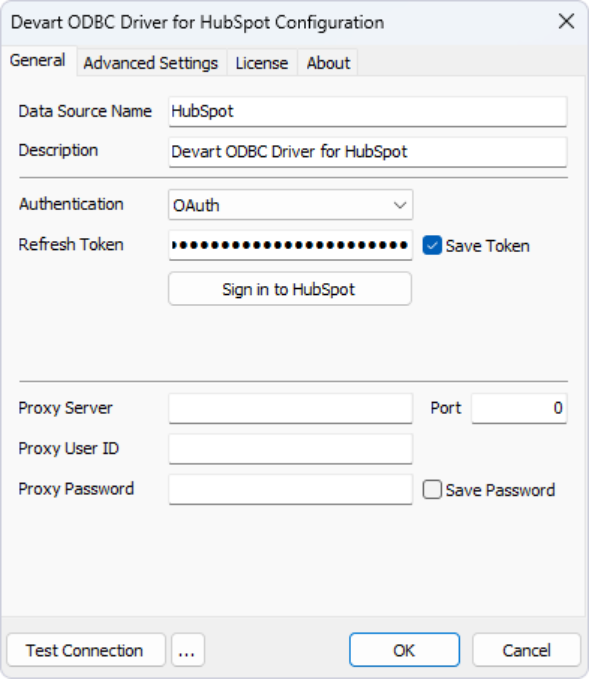
- Enter connection details: Use OAuth 2.0 or an API Key to authenticate HubSpot, and OAuth 2.0 with scopes such as
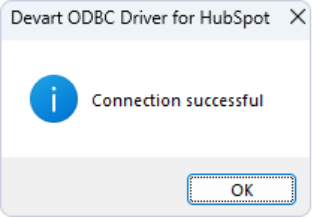
users:read, conversations:read, andchat:writeto authenticate Slack. - Test the connection: Use the Test Connection feature in each driver to confirm the DSNs are working. If the connection fails, check your credentials, firewall permissions, and network access before proceeding.
- Save the DSN: Click OK to store the configuration for use in SQL Server and BI tools.
Tip: Use clear names like HubSpot_ODBC and Slack_ODBC so they are easy to identify later when creating linked servers.
Step 3: Create Linked Servers in SQL Server (SSMS)
With DSNs in place, you can expose HubSpot and Slack data in SQL Server as Linked Servers. This enables distributed queries that join CRM and messaging data with SQL Server tables.
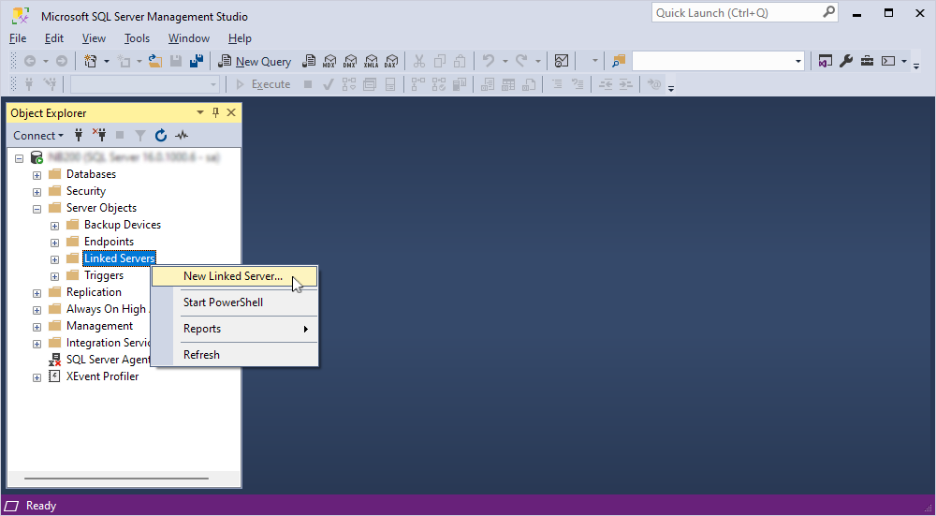
- Open SSMS: Start SQL Server Management Studio and connect to your SQL Server instance.
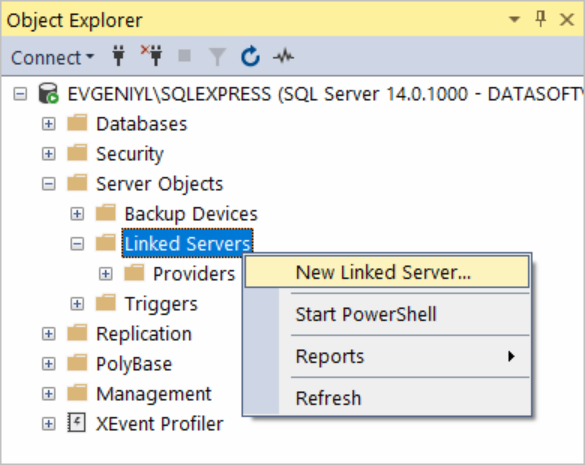
- Navigate to Linked Servers: In Object Explorer, expand Server Objects, right-click Linked Servers, and choose New Linked Server.
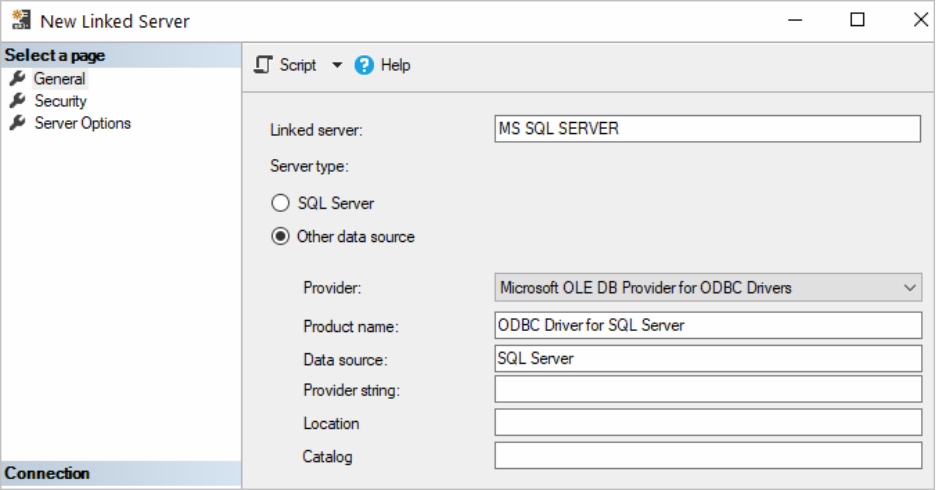
- Select the provider: In the New Linked Server dialog, set Server type to Other data source and select Microsoft OLE DB Provider for ODBC Drivers (MSDASQL).
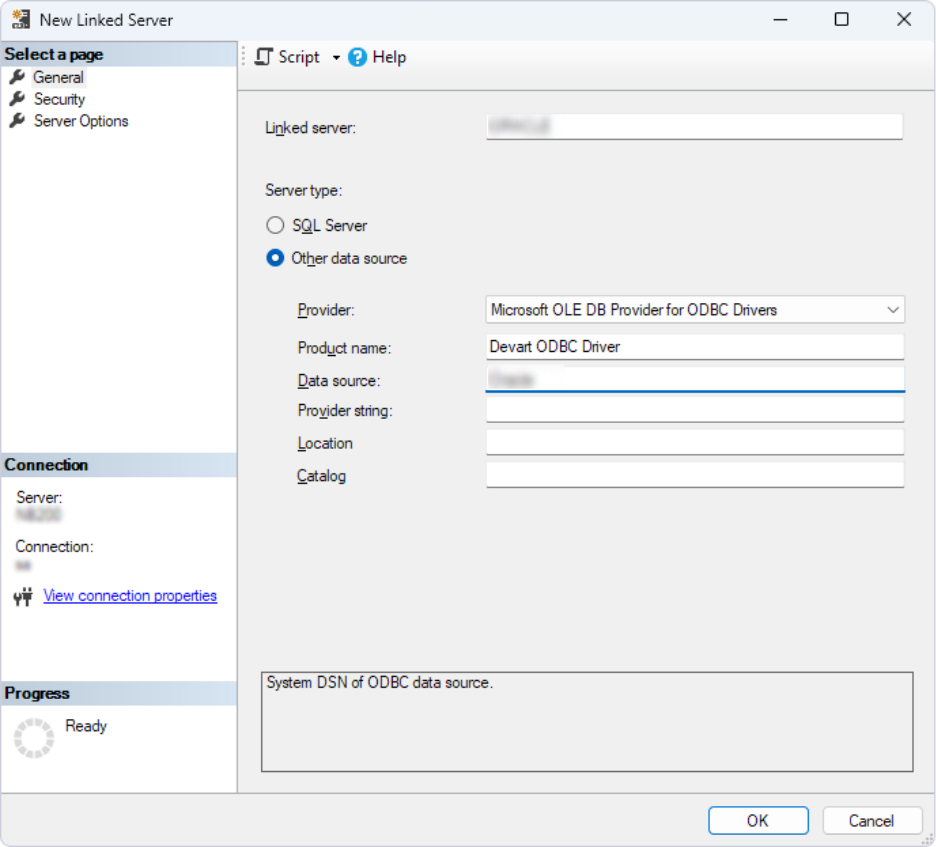
- Enter Linked Server name and DSN: In the Linked server field, type a name such as
HUBSPOTorSLACK. In the Product name and Data source fields, enter the System DSN you created earlier.
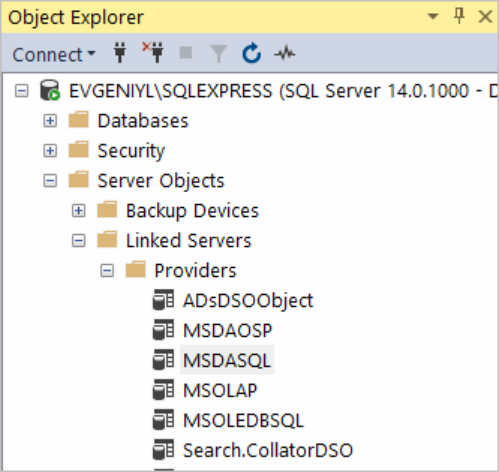
- Enable Allow inprocess: In Object Explorer, expand Linked Servers > Providers, double-click MSDASQL, and in the Provider Options window, check Allow inprocess.
- Open a new query window: Click New Query in the toolbar. The HubSpot tables are already available to be fetched.
- Enter your SQL query: Type the SQL statement in the editor window and click Execute to run it.
Example
SELECT *
FROM [HUBSPOT]...[TicketProperties]; - View results: The contents of the selected HubSpot table appear directly in SQL Server. Repeat the same process for Slack once its DSN is linked.
Step 4: Use SQL Server as a source for BI or ETL tools
With HubSpot and Slack unified in SQL Server, their data is ready for analysis and automation. Here is what to do next:
- Open your BI or ETL tool: Launch a platform such as Power BI, Tableau, or Excel for reporting, or SSIS, Azure Data Factory, or other third-party workflow engines for ETL.
- Create a new SQL Server connection: In your tool’s connection wizard, select SQL Server as the data source (e.g., Get Data > SQL Server in Power BI, Data > From SQL Server in Excel).
- Enter SQL Server details: Provide the server name, database name, and authentication method (Windows or SQL login).
- Select your database: Choose the database where your linked servers (
LINKED_HUBSPOT, LINKED_SLACK) are registered. - Query linked data: Either select HubSpot and Slack tables directly or write SQL queries using
OPENQUERYto combine both sources. - Build reports or workflows: In BI tools, design dashboards or pivot tables; in ETL tools, create pipelines to refresh HubSpot and Slack data. Even lightweight setups, like Google Sheets HubSpot Slack integrations, can benefit from ODBC by enabling direct queries instead of manual CSV exports.
- Schedule workflows: Run jobs in near real-time (if supported by your ETL tool) or on a batch schedule (hourly, daily, etc.).
- Verify integration: Confirm that HubSpot deal stages and ticket data, along with Slack channel conversations, appear correctly in your dashboards or pipelines.
With the technical setup complete, the integration is live. But what does that unlock in day-to-day operations?
Benefits of using Devart ODBC for HubSpot–Slack integration
Using Devart ODBC Drivers to connect HubSpot and Slack goes beyond basic data access. It turns two separate platforms into a coordinated system where updates, actions, and insights flow efficiently. Let’s explore the benefits in detail.
Real-time CRM notifications to Slack
Instead of checking dashboards or waiting for emails, sales and support teams see HubSpot updates the moment they happen. For example, a deal moving to “Contract Sent” or a ticket hitting “High Priority” can trigger an alert in Slack, where the team is already working. This keeps pipelines moving, prevents SLA breaches, and ensures nothing slips through the cracks.
Write-back and interaction potential
Slack HubSpot Integration doesn’t have to be one-way. With ODBC and the Slack API, actions in Slack can update HubSpot directly. For instance, a support agent marking a ticket as resolved or a rep logging meeting notes in Slack can automatically push updates into HubSpot. That means less context-switching, no duplicate data entry, and a tighter feedback loop between conversations and the CRM.
Secure & scalable
Devart ODBC Drivers are built for enterprise workloads. Connections are encrypted, authentication relies on secure standards like OAuth 2.0, and the drivers handle large datasets without performance bottlenecks. Whether you’re syncing a few hundred deals or millions of records across regions, the integration remains fast, stable, and compliant with security best practices.
These advantages highlight why ODBC-based integration scales where the native app falls short. To make the contrast clear, let’s compare Devart ODBC with HubSpot’s built-in Slack connector side by side.
HubSpot + Devart ODBC + Slack vs native integration
The table below compares what’s possible with Devart ODBC Drivers versus the native HubSpot–Slack app:
| Feature | Devart ODBC + Slack integration | Native HubSpot–Slack app |
|---|---|---|
| Real-time notifications | Yes (with middleware) | Yes |
| Direct data write-back | Possible (with automation tool/scripts) | No |
| Custom queries and joins | SQL-92 support for advanced filtering | Limited |
| Report generation and export | Use BI tools like Power BI or Excel | Not supported |
| Multi-tool compatibility | 200+ tools (SSMS, Tableau, Power BI, etc.) | Only Slack + HubSpot |
The takeaway is clear: the native app is built for notifications, while Devart ODBC Drivers extend HubSpot–Slack integration into analytics, automation, and multi-tool workflows.
Conclusion
Native HubSpot–Slack integration is useful for simple alerts, but it stops there. Growing teams need more: real-time insights, advanced reporting, and the ability to interact with CRM data without switching tools.
Devart ODBC Drivers turn HubSpot and Slack into part of a larger data ecosystem. By treating CRM and messaging data like SQL tables, you gain control over how it’s queried, reported, and shared across your BI and ETL platforms. The result is faster decisions, fewer silos, and workflows that scale with your business.
For organizations that want Slack to be more than a notification center, Devart delivers one of the best Slack ODBC connectors, alongside HubSpot drivers, making CRM and messaging data accessible, actionable, and enterprise-ready. Download them and transform Slack into a true command center for your CRM data.
FAQ
How do I set up a secure HubSpot–Slack integration in 2026?
Use Devart ODBC Drivers to configure DSNs for both HubSpot and Slack with OAuth 2.0 authentication. Connections are encrypted, and tokens should be stored securely to prevent unauthorized access.
What are the key benefits of connecting HubSpot CRM to Slack?
Teams gain instant deal and ticket updates, faster collaboration, reduced context switching, and the ability to centralize reporting and workflows across platforms.
Can I receive real-time deal and ticket updates from HubSpot in Slack?
Yes. With Devart ODBC and middleware, HubSpot pipeline changes or new ticket escalations can trigger Slack notifications in real time.
Is it possible to update HubSpot records directly from Slack?
Yes, with advanced setups. Scripts or middleware can capture Slack actions (like a ticket closed) and write updates back to HubSpot via ODBC and the Slack API.
What are the limitations of HubSpot’s native Slack integration?
The native app supports notifications but lacks direct write-back, advanced filtering, SQL queries, or integration with BI and ETL tools.
How does Devart ODBC enhance HubSpot and Slack connectivity?
It standardizes HubSpot and Slack data access via SQL-92, enables custom queries and joins, supports 200+ BI/ETL tools, and makes integrations more secure and scalable.
Can I automate reporting from HubSpot to Slack using BI tools?
Yes. By routing HubSpot and Slack data into SQL Server through ODBC, you can build automated dashboards in Power BI, Tableau, or Excel and push scheduled reports into Slack channels.
Where can I find support for advanced HubSpot–Slack integrations?
For technical setups, the HubSpot developers Slack community often shares best practices on handling OAuth scopes, API permissions, and custom workflows. It’s a valuable resource alongside Devart’s documentation when building deeper integrations.