


HubSpot QuickBooks integration is now a core operational requirement as data silos continue to disrupt workflows across 82% of enterprises. It addresses a critical failure point between CRM and accounting, where disconnected systems fragment customer, invoice, and revenue data.
In practice, this separation often leads to duplicated customer data, invoice corrections, and revenue reports that lag behind real activity. As deal volume increases, these issues compound and begin to shape cash flow, forecasting accuracy, and day-to-day decision-making.
The sections that follow examine how QuickBooks HubSpot integration works, the capabilities it enables, common failure points, and the operating principles organizations use to scale it in 2026.
Table of contents- What is HubSpot and QuickBooks integration?
- Why businesses need HubSpot QuickBooks integration
- Key features of HubSpot QuickBooks integration
- How to integrate HubSpot with QuickBooks: Step-by-step guide
- Common challenges and fixes in QuickBooks–HubSpot Integration
- Best practices for HubSpot QuickBooks integration in 2026
- Why choose Devart ODBC drivers for HubSpot and QuickBooks
- Conclusion
- FAQ

What is HubSpot and QuickBooks integration?
HubSpot and QuickBooks integration refers to the connection between HubSpot CRM and QuickBooks Online that allows selected customer and financial data to be shared between sales and accounting systems. The primary purpose of this integration is to reduce manual data entry and keep customer records aligned across platforms.
In practice, invoices and payments continue to be created and managed in QuickBooks Online, while HubSpot uses synced data to provide visibility into billing status at the deal or customer level. This allows sales and finance teams to reference invoice and payment information without duplicating accounting workflows inside the CRM.
In its native form, the integration prioritizes data synchronization and not full accounting automation. HubSpot manages CRM activity, while QuickBooks remains the system of record for invoicing, payments, and accounting, keeping customer data consistent from pipeline to finance.
What the native integration actually does
Based on the official Intuit app listing, the Quickbooks and Hubspot integration enables:
- Customer and contact data sync between HubSpot and QuickBooks Online
- Visibility into invoice and payment-related data inside HubSpot
- Reduced duplication of customer records across sales and accounting
This setup helps teams avoid mismatched customer information and manual re-entry, but it is not designed to replace accounting workflows or advanced financial reporting.
QuickBooks Online vs. QuickBooks desktop support
Before choosing a QuickBooks to HubSpot integration approach, it’s important to understand which version of QuickBooks is supported.
HubSpot provides native integration only with QuickBooks Online, using cloud-based APIs available through the HubSpot Marketplace and Intuit App Store. QuickBooks Desktop is not supported natively. Desktop editions run in local environments and require third-party connectors or data access tools to exchange data with HubSpot.
This distinction is a common source of confusion, especially for organizations running legacy or hybrid accounting setups.
Answering common user questions
Because QuickBooks comes in multiple editions, questions about HubSpot compatibility are common, and often misunderstood. Here are clear, direct answers to the most frequent ones.
- Does HubSpot integrate with QuickBooks?
Yes. HubSpot integrates with QuickBooks Online, primarily to synchronize customer data and provide visibility into invoice and payment information. - Can HubSpot integrate with QuickBooks Desktop?
No native integration exists. Connecting HubSpot with QuickBooks Desktop requires external tools or custom integration solutions.
Overall, integrating HubSpot and QuickBooks supports basic data alignment; deeper automation and analytics require more advanced integration tools.
Why businesses need HubSpot QuickBooks integration
For growing businesses, the disconnect between sales and accounting directly impacts cash flow, reporting accuracy, and decision-making. A QuickBooks integration with HubSpot exists to close that gap. It helps by providing the following benefits that change how revenue data moves from the pipeline into accounting.
A single source of truth across sales and finance
Without integration, sales works in HubSpot while finance operates in QuickBooks, often leading to mismatched customer records, outdated deal values, and invoices created without full context. Integration creates a shared data foundation, keeping customer records and deal values aligned and reducing disputes, rework, and manual reconciliation.
Faster sales-to-invoice cycles
One of the most tangible benefits is speed. When sales closes a deal, accounting shouldn’t need to recreate that work manually. With HubSpot and QuickBooks connected, a typical flow looks like this:
- A sales rep closes a deal in HubSpot.
- Deal data is synced to QuickBooks.
- An invoice is created in QuickBooks using the same customer and deal information.
- Payment status becomes visible back in HubSpot.
This shortens the time between deal close and invoice delivery.
Better financial visibility for the business
Integration improves visibility beyond invoicing. Sales leaders can see which deals have been billed or paid, finance teams can trace revenue back to pipeline activity, and leadership gets clearer reporting without relying on spreadsheets or delayed exports. Revenue and payment status can be monitored while deals are still active, not just at month-end.
Why this matters for analysts, developers, and data engineers
The value of HubSpot integration with QuickBooks goes beyond operational convenience. For technical teams, it improves:
- Data accuracy: Fewer manual touchpoints significantly reduce errors and ensure CRM and accounting data remains consistent and trustworthy.
- Analytics readiness: Aligned CRM and financial data enables dependable revenue analysis, cohort tracking, and forecasting.
- Automation potential: Consistent data models make it easier to design scalable workflows, dashboards, and downstream integrations.
This alignment between CRM and accounting becomes increasingly important as revenue operations scale.
Key features of HubSpot QuickBooks integration
HubSpot QuickBooks integration keeps sales and accounting data aligned without turning one system into the other. Here is an overview of what the integration enables in practice.
Core capabilities at a glance
| Capability | What the integration enables | Practical value for teams |
|---|---|---|
| Customer and company data sync | Keeps customer records aligned between HubSpot and QuickBooks Online | • Fewer duplicate customers • Cleaner CRM and accounting data • Less reconciliation |
| Deal data available for invoicing | Makes HubSpot deal and customer information available to support invoice creation in QuickBooks | • Faster billing • Reduced manual entry • Fewer invoice errors |
| Invoice and payment visibility in HubSpot | Reflects invoice and payment-related information back into the CRM | • Sales knows billing status • Better follow-ups • Fewer payment disputes |
| Configurable workflow support | Allows CRM events (such as deal stage changes) to inform downstream billing processes | • More consistent handoffs • Fewer missed billing steps |
| Selective two-way data synchronization | Syncs chosen customer and financial fields between HubSpot and QuickBooks | • More reliable reporting • Reduced data drift over time |
However, the actual sync behavior and automation depth depend on configuration, permissions, and the HubSpot and QuickBooks plans in use.
How to integrate HubSpot with QuickBooks: Step-by-step guide
Here’s how to connect HubSpot with QuickBooks Online using the native integration. Each step explains what to do and what you should expect when the setup is working correctly.
Step 1: Install the QuickBooks Online App from the HubSpot Marketplace
Action:
- In your HubSpot account, click the Marketplace icon in the top navigation bar.
- Select HubSpot App Marketplace.
- Search for QuickBooks Online and open the app listing.
- Click Install app.
Note: You must be a Super Admin or have App Marketplace permissions. QuickBooks sandbox accounts are not supported.
Expected outcome:
- The QuickBooks Online app is installed & listed under Integrations > Connected apps.
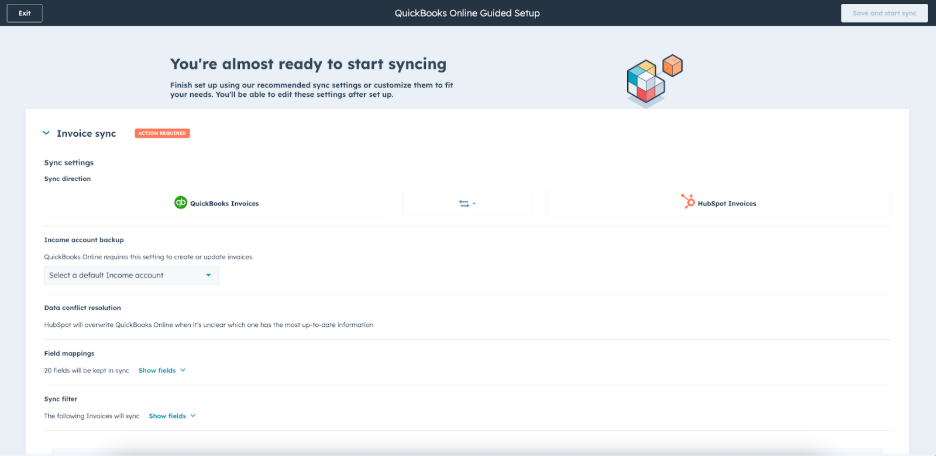
- You’re automatically redirected to Guided Setup, where data sync configuration begins.
Step 2: Connect HubSpot and QuickBooks accounts (OAuth)
Action:
- During installation, sign in to your Intuit (QuickBooks Online) account.
- Complete the OAuth authorization by granting HubSpot permission to access QuickBooks data.
Expected outcome:
- HubSpot confirms a successful connection.
- QuickBooks Online appears as an active connected app in HubSpot.
Step 3: Configure data sync and field mapping (guided setup)
After installation, HubSpot takes you to Guided Setup, where you configure how data syncs between HubSpot and QuickBooks Online. This setup focuses on three supported objects: Contacts (Customers), Products, and Invoices.
For each object, define how data should flow:
- Choose a sync direction (one-way or bi-directional).
- Set data conflict resolution to decide which system takes precedence.
- Review and adjust field mappings.
- Apply sync filters to control which records sync (recommended filters are enabled by default).
However, before starting the sync, review a few key constraints that commonly affect behavior:
- Customer Display Names must be unique in QuickBooks Online.
- Products are matched using SKUs, not names.
- Invoice sync behavior depends on where the invoice is created.
Once configuration is complete, click Save and start sync.
Expected outcome:
- Data sync starts automatically.
- Sync status (syncing, failing, excluded) is visible under Connected apps > QuickBooks Online > CRM syncs.
After Guided Setup, all syncs can be reviewed, edited, or disabled from the CRM syncs tab.
Step 4: Enable automations and workflows
Use HubSpot workflows to standardize what happens when a deal reaches key stages in your pipeline, especially Closed won. The goal is to reduce manual coordination between sales and finance while keeping QuickBooks as the system of record for invoicing.
A common and safe setup includes:
- Triggering a workflow when a deal moves to Closed won.
- Creating an internal task or notification for finance to review the deal.
- Ensuring the correct customer, products, and amounts are already synced to QuickBooks before invoicing.
If your account supports invoice-related workflow actions, these can be used carefully to initiate invoice creation or preparation steps based on deal data. However, workflows should be designed to support billing processes, not bypass accounting controls.
Expected outcome:
- Every closed deal follows the same, predictable handoff to finance.
- Billing-related steps are triggered consistently, reducing missed or delayed invoices.
Important considerations
- Avoid configuring workflows that create duplicate invoices or payments.
- If using two-way invoice sync, ensure workflows filter out payments coming from invoices to prevent duplication.
- Use the invoice object, not accounting deal properties, for reporting and workflow logic when QuickBooks is connected.
Step 5: Test the integration
Before rolling the integration out to live deals and customers, run a controlled test to confirm that sync rules, mappings, and workflows behave as expected.
A practical testing sequence:
- Create a test contact or company in HubSpot that meets your sync filters.
- Create a test deal and associate it with that contact or company.
- If invoice sync is enabled, create or finalize a test invoice using synced products.
- Go to Integrations > Connected apps > QuickBooks Online > CRM syncs and review the sync status.
- Check Object view to see which records are syncing, failing, or excluded, and open individual records to review sync activity details.
Expected outcome:
- Test contacts, products, and invoices sync successfully to QuickBooks Online.
- Any failed or excluded records clearly show the reason (for example, duplicate Display Names, missing SKUs, or filter rules).
- Workflow-triggered actions occur once and do not create duplicate invoices or payments.
What to validate before going live:
- Customer records map to the correct customers in QuickBooks Online.
- Invoice amounts, products, and tax behavior match expectations.
- No duplicate invoices or payments are created by workflows or two-way sync.
Testing at this stage helps surface configuration issues early, when they’re easy to fix, and ensures the integration is stable before it touches real revenue data.
Common challenges and fixes in QuickBooks–HubSpot Integration
Most HubSpot–QuickBooks issues are not caused by broken connections. They come from how data sync works in practice: scheduled updates, strict field rules, and differences between CRM and accounting systems.
Sync delays between HubSpot and QuickBooks
Updates may not appear immediately because data sync runs on intervals rather than in real time. This is especially noticeable during initial setup or periods of high activity, when records can queue before processing. To address this:
- Check sync status in CRM syncs
- Use Sync now when timing matters.
- Avoid bulk edits during active billing periods.
Field mapping and data mismatch issues
Customer names, invoice values, currencies, or dates can fall out of sync because HubSpot and QuickBooks enforce different field rules. Common friction points include unique customer Display Names in QuickBooks, SKU-based product matching, and region-specific tax or currency settings. To resolve this:
- Review mappings in Guided Setup or CRM syncs,
- Standardize customer naming and product SKUs,
- Confirm currency and tax settings before enabling invoice sync.
Duplicate records in HubSpot or QuickBooks
Duplicate customers or invoices usually appear when two-way sync runs without strict filters, Display Name conflicts exist in QuickBooks, or workflows trigger invoice-related actions more than once. Most teams fix this by:
- Applying HubSpot’s recommended sync filters,
- Assigning a single billing contact per customer,
- Reviewing workflows to ensure invoice-related actions trigger only once.
Limited support for QuickBooks desktop
Integration issues often arise when teams attempt to connect HubSpot with QuickBooks Desktop. HubSpot’s native integration supports QuickBooks Online only, and Desktop editions aren’t compatible with cloud-based sync.
To avoid this issue, confirm you’re using QuickBooks Online. If your accounting setup depends on QuickBooks Desktop, plan to use third-party connectors or data access tools instead of the native integration.
Invoice and payment sync errors
Invoices may fail to sync, payment status may not update, or totals may appear incorrect. This typically happens when HubSpot-created invoices are edited directly in QuickBooks, payments are split across multiple invoices, or tax and revenue recognition rules apply.
The recommended fix is to edit HubSpot-generated invoices within HubSpot, avoid splitting payments across invoices when HubSpot visibility is required, and review invoice and payment limitations before enabling two-way sync.
User permissions and security restrictions
Sync can fail without clear error messages when the connected user lacks sufficient permissions in HubSpot or QuickBooks, even though OAuth authorization was completed. To correct this, use a Super Admin or App Marketplace–enabled user in HubSpot, ensure the Intuit user has access to customers, invoices, and products, and re-authorize the connection after permission changes.
Best practices for HubSpot QuickBooks integration in 2026
A reliable HubSpot–QuickBooks integration depends less on features and more on disciplined configuration and everyday use. The practices below help teams keep the integration accurate, secure, and scalable over time.
Keep your data clean and consistent
Duplicate or inconsistent records quickly undermine reporting and workflows. Clean data ensures sync rules behave predictably and reports remain trustworthy.
Focus on:
- Using one billing contact per customer.
- Standardizing customer and company naming.
- Resolving duplicates before enabling two-way sync.
Set clear field mapping rules
Field mapping controls how CRM data becomes accounting data. If core relationships aren’t defined clearly, sync errors compound over time.
Focus on:
- Mapping key relationships (e.g., deal → invoice).
- Respecting QuickBooks rules like unique Display Names and SKU-based products.
- Avoiding unnecessary custom field mappings.
Automate workflows carefully
Automation should reduce manual handoffs without introducing billing risk. When designed correctly, workflows ensure every closed deal follows the same billing process.
Focus on:
- Triggering workflows from stable events like Closed won.
- Supporting billing handoffs rather than replacing accounting controls.
- Preventing workflows from re-triggering on invoice updates.
Monitor sync logs regularly
Sync errors don’t always surface immediately. Without monitoring, small issues can affect billing or reporting later.
Focus on:
- Reviewing CRM syncs for failed or excluded records.
- Investigating issues early.
- Rechecking sync settings after major changes.
Secure the integration with modern authentication
Authentication and permissions require ongoing attention. Outdated or over-privileged credentials can silently break sync or expose sensitive data.
Focus on:
- Using dedicated, properly permissioned accounts.
- Re-authorizing after role or permission changes.
- Periodically reviewing connected app access.
Train teams on how the integration works
Most integration issues are human, not technical. Clear ownership and basic training prevent avoidable errors.
Focus on:
- Clarifying who owns invoicing vs. CRM actions.
- Training sales on when not to edit billing data.
- Documenting basic do’s and don’ts.
Why choose Devart ODBC drivers for HubSpot and QuickBooks
While native integrations work for basic alignment, they fall short when teams need deeper data access, faster reporting, and advanced analytics. The HubSpot ODBC driver and ODBC driver for QuickBooks from Devart meet that requirement by providing:
- Direct SQL access to HubSpot and QuickBooks data: Data can be queried in real time without relying on scheduled syncs or workflow logic.
- Reliable performance for reporting workloads: Designed to support large datasets and frequent queries common in analytics and BI environments.
- Compatibility across analytics and data platforms: Works with BI tools, databases, data warehouses, ETL pipelines, and custom applications using the ODBC standard.
- More flexible analytics and data modeling: CRM pipeline data, invoices, and payments can be joined and analyzed without the constraints of predefined integration rules.
Rather than extending native sync logic, Devart provides a data access layer that supports reporting, analytics, and cross-system analysis at scale.
For teams that need advanced analytics, cross-platform compatibility, and high-performance access to HubSpot and QuickBooks data, Devart ODBC Drivers offer a practical next step.
Download a free trial of Devart’s HubSpot ODBC driver and ODBC driver for QuickBooks to evaluate direct SQL access and reporting.
Conclusion
Connecting HubSpot with QuickBooks in 2026 helps businesses reduce manual work, speed up billing, and keep sales and finance aligned. When supported by clean data, clear mappings, careful automation, and regular monitoring, the integration becomes a reliable foundation for day-to-day operations.
For teams that need deeper insight (such as advanced analytics, cross-platform reporting, or high-performance data access) Devart ODBC drivers for HubSpot and QuickBooks extend what native integration can do.
To move forward, apply the best practices covered here when setting up your integration. Also, consider a free trial of Devart ODBC Drivers if your reporting or analytics requirements go beyond native sync.
FAQ
Does QuickBooks integrate with HubSpot?
Yes. QuickBooks Online integrates with HubSpot through marketplace apps that sync customer records, invoices, and payment status. This integration allows sales and finance teams to work with consistent data across both systems.
What are the HubSpot QuickBooks integration features?
Core features of HubSpot QuickBooks integration include contact and customer sync, invoice creation from HubSpot deals, payment visibility inside HubSpot, and workflow-based automation tied to deal stages.
Is QuickBooks HubSpot integration free or does it require a paid plan?
The QuickBooks Online app is available through the HubSpot Marketplace, but available features depend on your HubSpot subscription. Basic connectivity may be available on lower-tier plans, while automation, workflows, and advanced sync options typically require paid HubSpot plans.
How secure is integrating HubSpot with QuickBooks for customer data?
The integration uses OAuth-based authentication and follows the security standards of both HubSpot and QuickBooks. Access is permission-controlled, and data sharing is limited to configured objects and fields. Regular permission reviews help maintain security over time.
How can businesses use HubSpot QuickBooks integration for better reporting?
By keeping customer, invoice, and payment data aligned, the integration improves reporting accuracy. Sales teams gain visibility into billing status at the deal level, while finance teams can trace revenue back to pipeline activity without manual reconciliation.
Do Devart ODBC Drivers support QuickBooks Desktop as well as QuickBooks Online?
Yes. Devart ODBC Drivers support both QuickBooks Online and QuickBooks Desktop, making them suitable for organizations running desktop accounting systems or hybrid environments where native HubSpot integrations are limited.
Can Devart ODBC Drivers help reduce sync delays between HubSpot and QuickBooks?
Yes. Devart ODBC Drivers provide direct, SQL-based access to data instead of relying on scheduled sync intervals. This allows teams to query near–real-time data for reporting and analytics, reducing visibility delays.
Is there a free trial of Devart ODBC Drivers for HubSpot and QuickBooks available?
Yes. Devart offers a free trial of its ODBC Drivers, allowing teams to evaluate performance, connectivity, and reporting capabilities before committing to a license.