


Microsoft officially pulled the plug on the native QuickBooks Power BI connector, triggering immediate reporting disruptions for many businesses. Automated refresh stopped working, dashboards went stale, and financial reporting pipelines that once ran in the background began to fail without warning.
This changed daily finance operations. Finance teams were forced back into manual CSV exports, delayed updates, and fragile reporting workflows. For leaders and data professionals who rely on real-time visibility from QuickBooks Online, this shift slowed decisions and increased compliance pressure.
However, this does not have to be the new normal. The Devart’s ODBC Driver for QuickBooks Online steps in as a secure, SQL-based replacement that restores the Power BI connection. This article shows how to set it up to regain automation, protect data integrity, and keep your Power BI dashboards running without interruption.
Table of contents- Why Microsoft’s QuickBooks Online connector is being deprecated
- Impact of the deprecation on data teams and businesses
- Common problems with Microsoft’s built-in QuickBooks connector
- What to look for in the best QuickBooks Power BI connector
- Introducing Devart’s ODBC Driver for QuickBooks Online
- How to connect QuickBooks to Power BI using Devart ODBC driver
- Final word
- FAQ

Why Microsoft’s QuickBooks Online connector is being deprecated
The QuickBooks Online (Beta) connector was a lightweight, native tool built into Power BI that allowed users to pull accounting data directly from QuickBooks Online into reports and dashboards. It was designed for basic reporting (simple table imports, minimal transformations, and scheduled refresh through the Power BI Service) without needing external drivers or APIs. However, that same simplicity meant it lacked the scalability and reliability needed for larger, production-grade financial reporting.
The technical reasons behind the deprecation
Over time, several structural weaknesses became impossible to ignore:
- The connector grew increasingly unstable as QuickBooks APIs evolved.
- OAuth authentication frequently broke under tighter security enforcement.
- Power BI Service refreshes failed silently and unpredictably.
- The architecture could not support multi-company access or high-volume financial reporting.
Rather than rebuilding it to enterprise standards, Microsoft ultimately chose to retire it.
What Microsoft has formally confirmed
According to Microsoft’s official deprecation notice, the Power BI QuickBooks connector is now on a phased retirement path. Support is being removed, new connections are blocked, and, most critically, scheduled refresh in the Power BI Service is being disabled, immediately breaking automated reporting workflows.
The community response has been marked by confusion and frustration. Many teams only realized the connector was failing after refreshes stopped working, with no clear first-party replacement path. However, these issues were not new: users had reported OAuth errors and broken refresh cycles for months before the formal deprecation.
Impact of the deprecation on data teams and businesses
With the native connector now disabled, automated QuickBooks reporting in Power BI has effectively stopped for thousands of teams. What has replaced that automation is manual work, and the impact is already visible across finance, compliance, and engineering teams.
Operational disruption for finance teams
In day-to-day operations, the disruption has reshaped how reporting gets done:
- Teams now export CSVs from QuickBooks Online instead of using automated feeds.
- Analysts manually re-import data into Power BI to keep dashboards running.
- Reporting has shifted from near real time to delayed snapshots.
- Error risk continues to rise with every manual handoff.
Over time, this erodes confidence in reporting, not because people are careless, but because the process itself is structurally fragile.
Compliance and audit risk
Once financial data is moved by hand, clean audit trails become difficult to maintain. It becomes harder to prove where the data came from, exactly when it was extracted, and whether it was altered along the way. For organizations under regulatory or external audit scrutiny, this loss of traceability creates real compliance exposure.
New burden on data engineers
For technical teams, the deprecation has created unplanned recovery work:
- Rebuilding integrations directly through APIs.
- Managing OAuth tokens manually.
- Creating custom refresh scheduling and monitoring logic.
Instead of advancing analytics maturity, engineering capacity is now being consumed by recovery work.
However, long before refreshes stopped entirely, teams were already compensating for gaps that made the connector unsuitable for production-grade financial reporting.
Common problems with Microsoft’s built-in QuickBooks connector
The disruptions finance teams and data engineers face now are the direct result of the built-in connector’s inherent technical limitations. In short, Microsoft’s native connector between Power BI and QuickBooks Online was never designed to handle the complexity and scale that businesses need. Let’s get into details.
Limited data access
Many users reported that not all expected QuickBooks objects were consistently available through the connector. In practice, this meant gaps in specific financial tables, schema inconsistencies, or missing historical depth—forcing teams to work with partial datasets or build reporting logic around what was accessible rather than what was required.
No advanced queries
The connector operated strictly as a basic import layer, with no native support for SQL-style joins, server-side filtering, or source-level aggregation. Even simple financial logic had to be rebuilt manually inside Power BI, increasing model complexity and slowing development.
Authentication issues
Authentication reliability was one of the most consistently reported problems. Users described OAuth token expirations, repeated re-authentication loops, and refresh jobs failing after security updates, often without clear advance warning.
Single-company restriction
While not formally documented as a hard restriction, many organizations with multiple QuickBooks environments reported difficulty operating the connector at scale across several entities. As a result, consolidated financial reporting often depended on manual workarounds.
Broken refreshes in Power BI service
Scheduled refresh reliability degraded well before the formal shutdown. Numerous users reported service-side refresh failures that produced vague or inconsistent error messages, leaving teams unsure whether dashboards were current or stale.
Poor logging and transparency
When failures occurred, error feedback was minimal. Teams lacked actionable logs for troubleshooting, turning even minor issues into prolonged investigations.
Taken together, these issues explain why many teams had already lost confidence in the native connector long before Microsoft formally deprecated it.
So what does a reliable replacement actually look like?
What to look for in the best QuickBooks Power BI connector
Before selecting a new connector, ensure it addresses the limitations of Microsoft’s version. The goal is not just to restore what was lost, but to replace a fragile integration with one that is secure, scalable, and built for real production reporting in Power BI from QuickBooks Online.
Full data coverage
A proper connector must expose all relevant QuickBooks objects, relationships, and historical depth, not just a limited subset. Partial data access leads to partial truth, which is unacceptable for financial reporting and audits.
SQL-like querying
SQL-style access is essential for serious analytics. It allows teams to join tables, filter data before it reaches Power BI, and pre-aggregate large datasets at the source. This reduces the amount of transformation work inside Power BI, resulting in faster performance, simpler models, and more reliable reports.
OAuth 2.0 Authentication
Modern financial integrations must use OAuth 2.0 for secure, delegated access. This removes the need to store raw credentials, reduces exposure to breach risk, and aligns with enterprise identity and access management standards.
Caching & connection pooling
High-volume financial reporting places constant pressure on APIs. Without caching, pagination handling, and pooled connections, refresh cycles become slow, unreliable, and prone to rate limits, especially as data volumes grow.
Cross-platform support
Today’s reporting stacks span Windows, macOS, Linux, on-prem gateways, and cloud refresh services. A future-proof connector must work across these platforms, not lock teams into a single OS or deployment model.
Reliable scheduled refresh
Automated refresh must be predictable, observable, and stable in the Power BI Service. If refresh reliability is questionable, dashboards lose their role as trusted decision systems and become snapshot-only artifacts.
Technical support and documentation
Clear documentation, transparent schema discovery, detailed diagnostics, and responsive technical support are essential. When financial data pipelines break, teams need quick, predictable resolution, not trial-and-error troubleshooting.
This is exactly the benchmark Devart’s ODBC Driver for QuickBooks Online was built to meet.
Introducing Devart’s ODBC Driver for QuickBooks Online
Devart’s ODBC Driver for QuickBooks Online restores and enhances the Power BI integration Microsoft discontinued. It replaces a fragile, deprecated connector with a stable, SQL-based data access layer built for continuous financial reporting between QuickBooks Online and Power BI.
Instead of relying on a limited import connector, Power BI connects through standard ODBC. The driver translates SQL queries into optimized QuickBooks API requests in real time. This means analysts can query accounting data as if it lived in a relational database: supporting joins, filters, and aggregations at the source rather than rebuilding logic inside Power BI.
Key capabilities include:
- Full data coverage across QuickBooks objects and metadata
- SQL-like querying for server-side filtering and aggregation
- Secure OAuth 2.0 authentication without storing raw credentials
- Caching and connection pooling for predictable performance
- Stable scheduled refresh through the Power BI Service
This QuickBooks Power BI integration is not a workaround. It’s a permanent replacement built for production.
Microsoft Connector vs. Devart ODBC Driver for QuickBooks Online
The contrast becomes clearer when you put the two solutions side by side
| Feature | Microsoft Native Connector | Devart ODBC Driver for QuickBooks Online |
|---|---|---|
| Status | Deprecated | Active & Fully Supported |
| SQL Query Support | None | Full SQL-92 (JOIN, WHERE, GROUP BY) |
| Multi-Company Access | Not supported | Yes |
| Scheduled Refresh (Service) | Unreliable / Disabled | Stable & Predictable |
| Authentication | Legacy / Fragile | Secure OAuth 2.0 |
| Platform Support | Windows only | Windows, macOS, Linux |
| Advanced Filtering at Source | No | Yes (server-side filtering) |
| Data Volume Handling | Limited | High-volume ready |
| API Rate-Limit Protection | No control | Caching & pagination handling |
| Connection Pooling | No | Yes |
| Error Logging & Diagnostics | Minimal | Detailed logs & tracing |
| Enterprise Support | Best-effort only | Dedicated technical support |
| Security Model | Basic | Enterprise-grade |
| Long-term Viability | Retired | Actively maintained |
With the differences now clear, the next step is putting the right solution into practice.
How to connect QuickBooks to Power BI using Devart ODBC driver
Here’s how to replace Microsoft’s deprecated QuickBooks connector with Devart’s ODBC Driver for QuickBooks Online, from installation to live dashboards in Power BI using data from QuickBooks Online
Step 1: Download and install the driver (Windows)
To get started, you need to install the Devart ODBC Driver for QuickBooks Online on your Windows machine. This will set up the core connectivity you’ll use in Power BI. Follow these steps:
- Download and run the Windows installer (.exe).
- Follow the setup wizard to complete the installation.
- Uninstall any older driver version before continuing for best stability.
- Choose whether to install the 64-bit driver on the Select Components screen.
- Choose Activate now or Activate later on the License Information screen.
- Enter or load your Purchased or Trial activation key.
- Activate the driver even if you are using the trial version.
- Click Next, then Finish to complete setup.
- Move on to DSN configuration.
Step 2: Configure the Windows DSN
Next, you’ll create a Data Source Name (DSN) to connect QuickBooks to Power BI via ODBC. This DSN will serve as the bridge between QuickBooks and your reports. Here’s how to do it:
- Open ODBC Data Source Administrator on your system.
- Search for ODBC Data Sources in Windows and select the version that matches your app’s bitness (32-bit or 64-bit).
- Alternatively, launch it directly: Use
C:\Windows\SysWOW64\odbcad32.exefor 32-bit orC:\Windows\System32\odbcad32.exefor 64-bit. - Open either the User DSN or System DSN tab (most apps support both).
- Click Add to create a new data source.
- Select the Devart ODBC Driver for QuickBooks Online and click Finish.
Step 3: Authenticate with QuickBooks Online (OAuth Only)
Now you’ll authenticate your DSN with QuickBooks Online to enable secure data access. This ensures that your connection is authorized and ready to use in Power BI. Follow these steps:
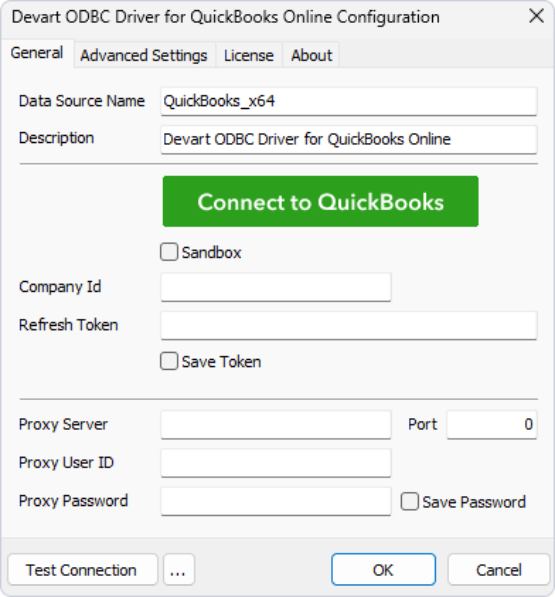
- Click Connect to QuickBooks in the Devart driver window.
- Open the browser window that launches automatically.
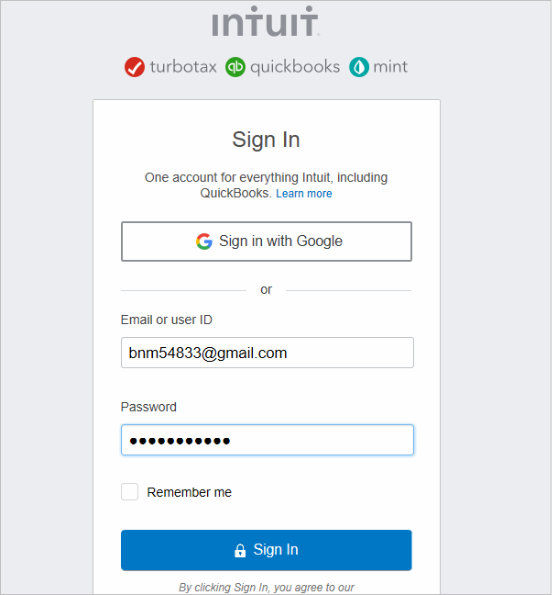
- Sign in to QuickBooks Online using your browser or Google login.
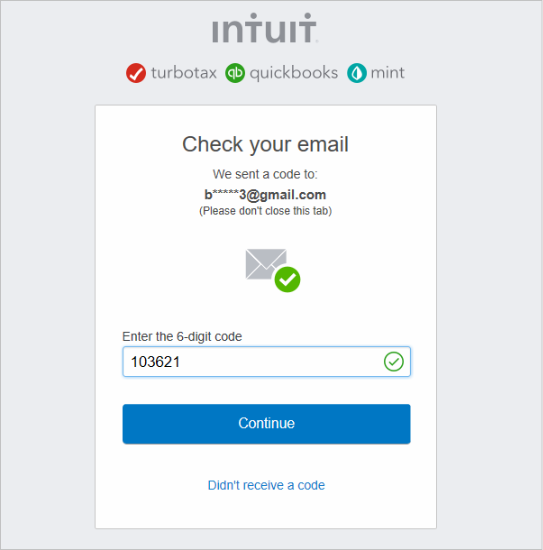
- Enter the verification code sent by QuickBooks and click Continue.
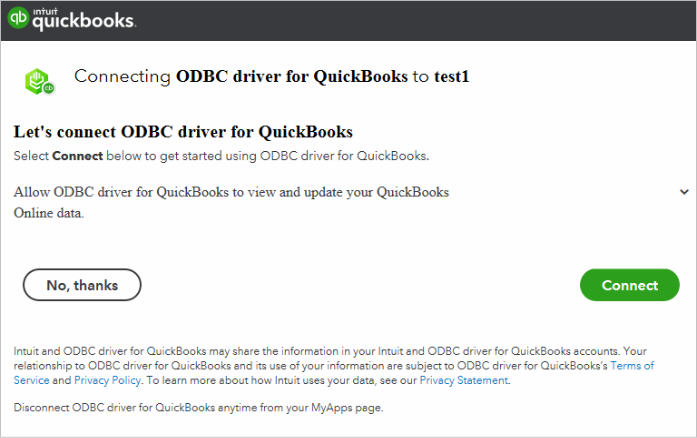
- Click Connect to authorize access to your data.
- Let the system auto-fill your Company ID and Refresh Token.
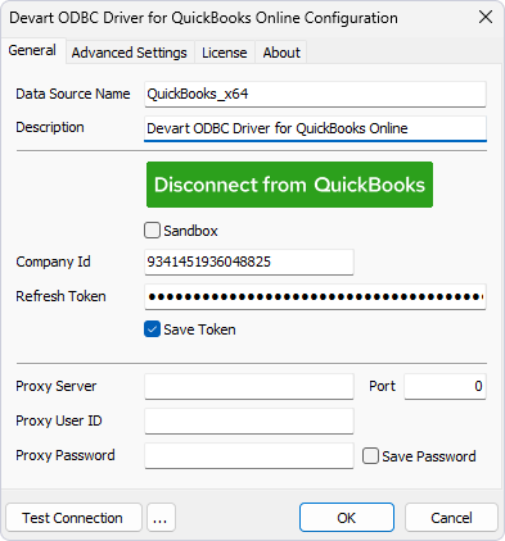
- Click Test Connection to verify access.
- Click OK to save the DSN.
Step 4: Connect Power BI to QuickBooks via ODBC
Now that your DSN is configured and authenticated, it’s time to connect QuickBooks Online to Power BI. Do the following to start importing your data into Power BI:
- Open Power BI Desktop and click Get Data on the home ribbon.
- In the Get Data window, open the Other category and select ODBC.
- Click Connect to continue.
- Open the Data Source Name (DSN) dropdown and select your Devart QuickBooks DSN.
- Click Advanced options if you want to enter a SQL query to filter or limit data before import.
- Click OK to establish the Power BI QuickBooks connection.
- Confirm credentials if Power BI prompts you.
- Browse the available QuickBooks tables and objects exposed by the driver.
- Click any table to preview its data.
- Select the tables you want to analyze.
- Click Load to import the data into Power BI.
This is how to connect QuickBooks Online to Power BI. After you complete this step, Power BI treats your QuickBooks data like any other structured database source, and you’re ready to move into modeling and visualization.
Step 5: Create your first QuickBooks dashboard in Power BI
After loading your data into Power BI Desktop, follow the standard Power BI workflow to build your first dashboard. Here’s how to do it:
- Open the Model view and confirm relationships between key tables (customers, invoices, transactions, accounts).
- Switch to the Report view and start building visuals.
- Add core financial charts such as revenue vs. expenses, cash flow, and AR/AP.
- Use filters and slicers to enable interactive analysis by date, account, or customer.
- Apply basic formatting and save your report as a .pbix file.
For a detailed walkthrough on creating and designing dashboards in Power BI, refer to Microsoft’s official documentation on building reports and dashboards.
Step 6: Schedule Refresh in Power BI Service
Finally, to keep your dashboards up-to-date, you’ll set up a scheduled refresh in the Power BI Service. This ensures your QuickBooks data stays current automatically. Follow these steps:
- Click Publish in Power BI Desktop to upload your report to the Power BI Service.
- Open the report in the Power BI Service.
- Go to the Dataset settings linked to your report.
- Configure the On-premises Data Gateway (if required for your environment).
- Verify that your Devart QuickBooks ODBC connection is listed and authenticated.
- Open Scheduled refresh settings.
- Turn Keep your data up to date to On.
- Set your refresh frequency and time window (daily or multiple times per day).
- Click Apply to save the schedule.
Once enabled, the Power BI Service automatically refreshes your dashboards using live data from QuickBooks Online. This restores the continuous reporting cycle that was lost with Microsoft’s deprecated Power BI QuickBooks Online connector.
Final word
Relying on a deprecated connector is no longer a tolerable risk. As Microsoft phases out its native QuickBooks integration, teams that delay action expose themselves to broken refreshes, manual workarounds, and growing compliance gaps across financial reporting in Power BI.
This is exactly where Devart’s ODBC Driver for QuickBooks Online steps in as the permanent fix. It restores automated data flow from QuickBooks Online, adds SQL-based querying, stabilizes scheduled refresh, and brings security and governance back into the pipeline. The result is continuity without fragility, performance without workarounds, and compliance without guesswork.
If your dashboards still depend on the retired connector, now is the moment to move.
Download Devart’s ODBC Driver for QuickBooks Online and keep your QuickBooks-to–Power BI workflows running without interruption.
FAQ
How do I connect Power BI to QuickBooks Online after the native connector is gone?
To connect Power BI to QuickBooks online after the native connector is gone, you use the ODBC Driver for QuickBooks as the new data access layer. You install the driver, create and authenticate a DSN, connect Power BI via ODBC, load your tables, and then publish and schedule refresh in the Power BI Service. This fully replaces Microsoft’s deprecated native connector.
Why is Microsoft deprecating the QuickBooks Online connector in Power BI?
Microsoft deprecated the connector due to long-standing reliability, authentication, and service-refresh issues tied to changes in the QuickBooks API and security model. Rather than rebuilding the connector to enterprise standards, Microsoft chose to retire it and disable scheduled refresh in the Power BI Service.
What are the performance and data limits when you integrate QuickBooks data with Microsoft Power BI?
When you integrate QuickBooks data with Microsoft Power BI, performance depends on QuickBooks API limits, dataset size, and how efficiently queries are executed. Using a SQL-based ODBC driver improves performance by enabling server-side filtering, pagination handling, and query push-down, which reduces the amount of data Power BI must process locally.
Does Devart’s ODBC Driver support SQL queries, INSERT, UPDATE, and DELETE operations?
Yes. Devart’s ODBC Driver supports full SQL-92 syntax, including SELECT, INSERT, UPDATE, and DELETE operations, subject to QuickBooks API permissions and object limitations. This allows both analytical querying and controlled data updates where supported.
How does Devart handle authentication (OAuth 2.0) with QuickBooks Online?
Devart uses OAuth 2.0 authentication. You authenticate through the QuickBooks browser login, approve access, and the driver securely manages access and refresh tokens. No raw usernames or passwords are stored.
Can I use Devart’s ODBC Driver across Windows, macOS, and Linux?
Yes. Devart provides cross-platform ODBC drivers that work on Windows, macOS, and Linux, making the solution suitable for both desktop users and server-based gateway deployments.
How do I connect Power BI to QuickBooks when migrating from Microsoft’s native connector?
When you connect Power BI to QuickBooks using Devart’s ODBC Driver, you replace the old data source with the new ODBC connection, re-map tables if required, and refresh the dataset. In most cases, your existing visuals, measures, and report layouts remain unchanged, making migration primarily a data-source swap.
How do I migrate existing Power BI dashboards from Microsoft’s connector to Devart’s ODBC Driver?
You replace the old data source with the new Devart ODBC connection, re-map tables if required, and refresh the dataset. In most cases, existing visuals, measures, and report layouts remain unchanged, making the migration primarily a data-source swap rather than a full rebuild.
Is there a free trial for the Devart ODBC Driver, and how long is it?
Yes. Devart offers a free trial of the ODBC Driver for QuickBooks, allowing you to test full functionality before purchasing. The trial period typically runs for 30 days, depending on the license terms at the time of download.